Protect your privacy every time you open Microsoft Edge. The VPN Lightning Extension for Edge delivers instant, secure browsing in one lightweight tool. Stay private, avoid trackers, and control your connection with ease.
The moment you open Microsoft Edge, your online activity should be safe from unwanted eyes. The VPN Lightning Extension was designed to give you that protection without adding complexity. It installs directly into your browser and works quietly in the background to keep your personal information hidden from trackers, advertisers, and prying networks.
With this extension, your IP address is hidden, your data is encrypted, and your browsing stays private from start to finish. Whether you are reading the news, checking your bank account, or planning a trip, you never have to worry about being watched.
Browser Extension Install
Getting started with the VPN Lightning browser extension takes just a few clicks. You do not need to make changes to your account or subscription. Simply follow the steps for your browser, and you will be protected in no time.
Microsoft Edge Extension: Install
Getting set up with the Edge extension takes just a few moments:
Visit the Microsoft Edge Add-ons store Search for “VPN Lightning” or click the direct install link provided on our site.
Click Install The extension will appear in your browser bar after a quick download.
Login and Connect Sign in with your VPN Lightning credentials, click connect, and enjoy instant protection.
You’ll be connected to the fastest available server and can switch locations anytime. There’s no software download, no system settings to change.
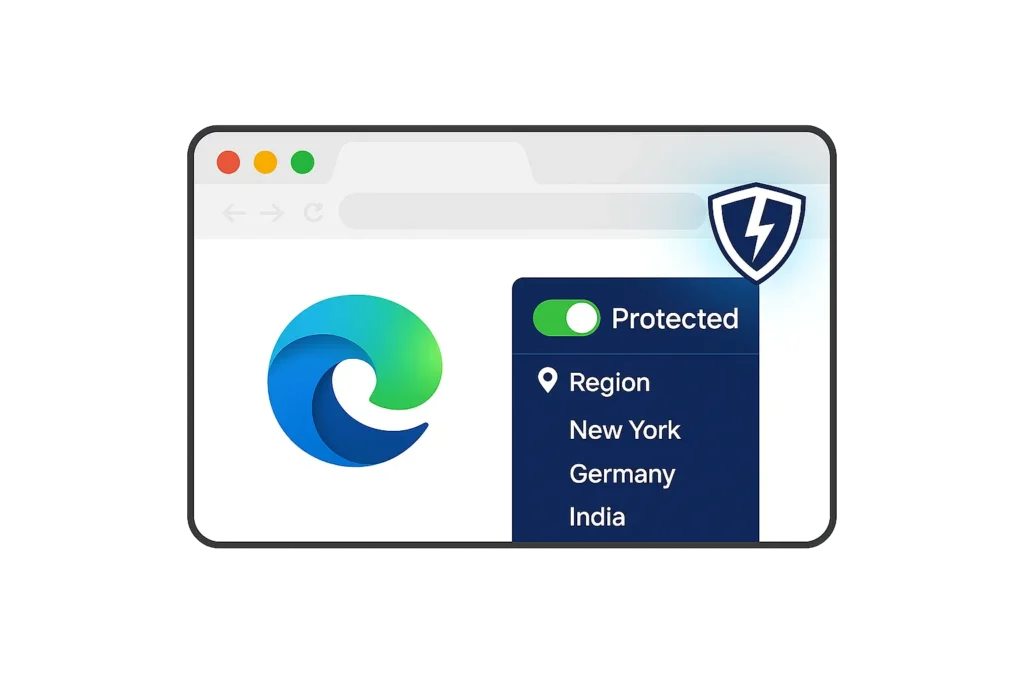
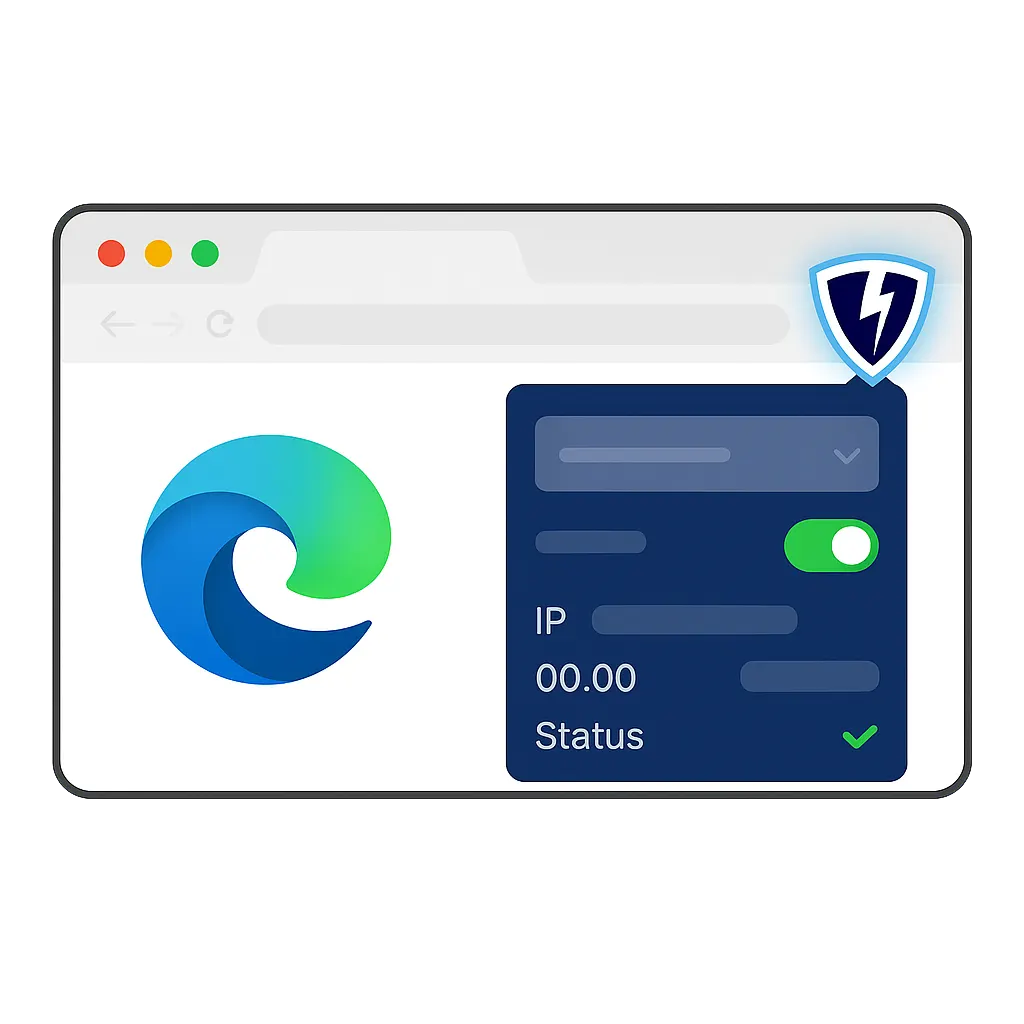
VPN Lightning for Microsoft Edge gives you complete control in the simplest way possible. With a single click on the extension icon, you can view your connection status, switch VPN servers, or pause protection at any time. The interface is easy to navigate, even if you are brand new to VPNs.
Want to change your server location? Just open the dropdown and pick one. Need to see your current IP address or how long you have been connected? All your stats are visible in one clean panel. There are no complicated menus or cluttered screens. You stay in charge without the confusion. There are no ads, no pop-ups, and no distractions. Just private, secure browsing on your terms.
Optimized for Speed and Safety
VPN Lightning is engineered for smooth, lag-free browsing. Our extension connects to a global network of high-speed VPN servers, giving you fast and stable access no matter where you are. Whether you are streaming videos, joining virtual meetings, shopping online, or just checking your inbox, the extension works quietly in the background to keep your activity protected without sacrificing performance.
Unlike many VPN tools that slow you down or interfere with daily tasks, VPN Lightning is built to stay light and responsive. Pages load quickly, videos play without buffering, and downloads stay consistent. You get the privacy you need with the performance you expect.
We understand that choosing the right VPN is important, and we want you to feel assured in that choice. VPN Lightning is built for high performance, strong privacy, and consistent protection, and we support that with a 30-Day Money-Back Guarantee so you can test it with confidence.
Make the most of what VPN Lightning delivers. Connect to our global network, measure your speeds, and notice the improvement in security and reliability. If it does not meet your needs, reach out within 30 days. Your refund will be processed quickly and professionally.
Subscribe to VPN Lightning’s Weekly Newsletter and easily stay up-to-date on the latest & most important VPN News. Delivered Right to Your Inbox.
MICROSOFT EDGE EXTENSION
Frequently Asked Questions
How does the Edge extension protect my browsing?
The VPN Lightning extension for Microsoft Edge hides your IP address and encrypts your traffic. This means your data stays safe from hackers, trackers, and third-party snoopers, even on public Wi-Fi.
Will the extension slow down my internet speed?
No. VPN Lightning uses high-speed servers built to keep your connection fast and stable. You can stream, shop, scroll, and search without lag or delays.
Can I choose the VPN server location?
Yes. The Edge extension gives you full control. You can select your preferred server region for faster speeds or access to geo-restricted content.
Is my activity tracked or logged?
Never. VPN Lightning follows a strict no-logs policy. We do not collect or store your browsing history, search activity, or personal data.
Do I need a separate subscription to use the Edge extension?
No. Your regular VPN Lightning subscription covers all supported apps and extensions. Just log in and activate the browser extension.
How do I install the Edge extension?
Go to the Microsoft Edge Add-ons store and search for VPN Lightning. Click “Get,” add the extension, and log in to your account. Protection starts instantly.
How do I uninstall the extension?
Open Edge, click the puzzle icon, find VPN Lightning, and select “Remove.” The extension will be uninstalled from your browser.
Every Click. Every Page. Every Session. Stay Protected.
VPN Lightning delivers a complete experience for private, fast, and protected browsing. Access high-speed servers worldwide, select dedicated IP options, and secure your traffic using advanced encryption.